
MYBUILD M1-USB
Start-up guide
1. Product Description
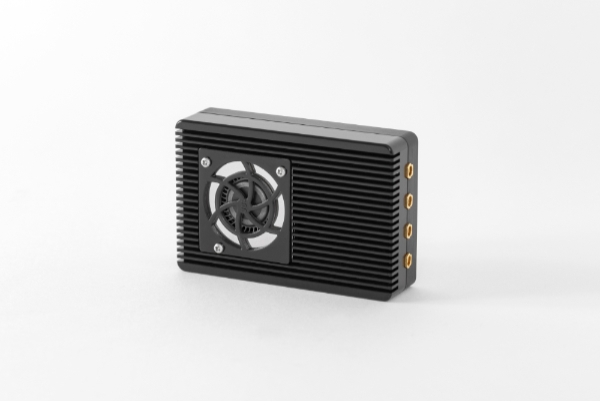
The MB M1-USB is a USB-connected RFID module from Myruns. This highly versatile device is
perfect for use as a core component in a variety of applications, solutions, and products that
require RFID technology.
2. Package contents
Please ensure that the package you receive contains all the items listed below:
MB M1-USB Device
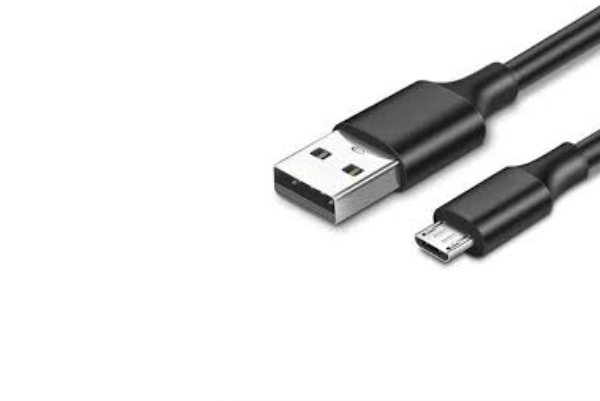
Micro USB cable
3. Testing application
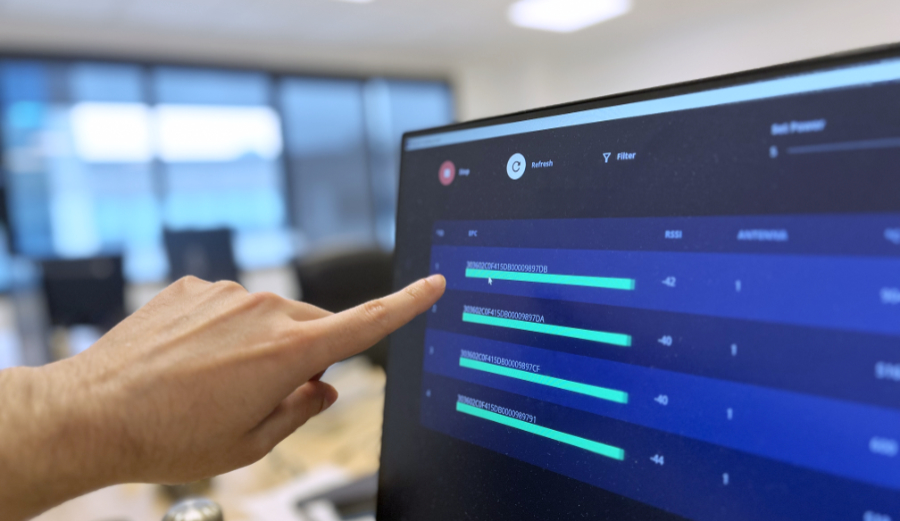
The Reading Tool application is provided by the Myruns sales team. This application allows
integrators to quickly acquire the necessary knowledge to begin working with RFID.
It is a user-friendly application from which you can configure connected antennas, reading
power, or apply a basic filter to tag readings.
The Android SDK package also includes a test application for Android that can be connected to
your smartphone or any Android device.
Reading tool
4. Integration process
The MB M1-USB uses the Myruns SDK, which has a version for different programming languages.
MYRUNS SDK - Available Versions
| SDK version | Package contents | Final application | Integration environments |
|---|---|---|---|
| MR SDK NODE | myRunsSdkWrapper.node | JavaScript | Web |
| MR SDK ANDROID | myRunsSdkWrapper.aar | Java, Kotlin... | Android |
| MR SDK JAVA |
myRunsSdkWrapper.jar
+ libMRSDK.dll / libMRSDK.so |
Java | Windows / Linux |
| MR SDK C |
libMRSDK.dll
+ libMRSDK.dll / libMRSDK.so |
Java | Windows / Linux |
Obtaining the MB M1-USB SDK can be done in two ways:
To get the SDK version you need, as well as its corresponding documentation, you must have a
user account on the Myruns website.
If you purchased the module through a member of the sales team, they will provide you with
the corresponding package from the list in the table above. If you haven't received the
necessary materials in this way, please contact the Myruns sales team from whom you
purchased the product.
MYRUNS SDK - Overview of available methods
The SDK methods are common to all versions of the SDK. The RFID module provides the integrator team with the functionalities listed in this table for use in their development projects. Documentation for the SDK functions is provided by the Myruns sales team.
The following link provides technical documentation for implementing the SDK methods in your projects. The language used to integrate the functions is Java, which is compatible with the Android SDK.
MYRUNS JAVA SDK INTEGRATION DOCS
IMPORTANT NOTES ON THE ANDROID SDK:
The MB M1-USB Android SDK (API Level) is compatible with Android versions 28.0.0
through 36.0.0
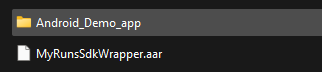
. The Android SDK package also includes the source code for a simple test application
(mentioned in section 3: Test Application). Opening it in your code editor will show you the
structure of a basic application that already integrates the Android SDK (a compiled .aar
library)
START INTEGRATION:
- Open the .zip file you received from the Myruns sales team
- Place the MyRunsSdkWrapper (.aar, .node o .jar depending on the version) in your project.
- Consult the Java integration documentation to begin integrating your development with the RFID module.
-
Additionally, as a helpful measure, you can:
- Use the reading tool (included in the SDK package) to test, visualize readings and familiarize yourself with the RFID environment (mentioned in point 3: Testing Application).
- Open the Android demo application included in the package to learn how to integrate the functionalities described in the Java integration documentation and in the table shown below.

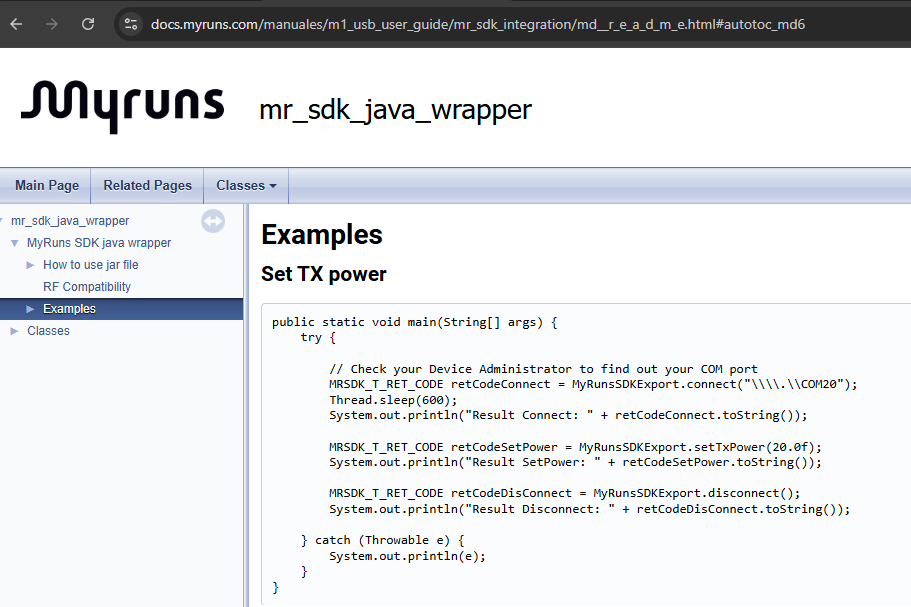
The following table shows the methods available in all SDK versions.
| Method | Description |
|---|---|
| connect | Function to connect to the module. |
| disconnect | Function to disconnect from the module. |
| setTxPower | Function that updates reading power. |
| getTxPower | Function that obtains the reading power. |
| enableAntennas | Function that enables or disables antennas separately. |
| setAntennaSequence | Function that enables the antennas simultaneously and establishes a reading order for them. |
| getBoardVersion | Function that returns the firmware version and the hardware version. |
| getUID | Function that obtains the UUID of the device, which uniquely identifies it. |
| getInventoryParameter | This function retrieves an inventory value. Several inventory values configure
its behavior: Target, Tari, BLF, Coding, Q, Session. |
| setInventoryParameter | Function that updates an inventory value. The values are those mentioned in the previous method. |
| getRegion | Function that obtains the inventory value of region (In future versions it will be incorporated into the getInventoryParameter and setInventoryParameter methods). |
| setRegion | Function that updates the inventory value of the region (In future versions, it will be incorporated into the getInventoryParameter and setInventoryParameter methods). |
| inventoryRunnerStart | Function that initiates the inventory. |
| inventoryRunnerStop | Function that stops the inventory. |
| firmwareUpdate | Function that updates the Firmware. |
| firmwareUpdateNoThread | Functions that update the bootloader on Linux systems. |
| getBootloaderStatus | Functions that return the progress of the Firmware update. |
5. Problem solving
If the MB M1-USB device does not function correctly during commissioning, follow the steps
below to try to identify and resolve the problem:
-
Check the device's USB power
Try connecting the device to a different USB port on your PC. If no ports are available, test it on another computer to rule out problems with the PC you are using. -
Replace the USB cable
Change the supplied micro USB cable for another identical one to rule out cable failures. -
Try another MB M1-USB device
If you have another Myruns MB M1-USB reader, repeat the test with the same original port and cable to check if the problem is due to the device hardware. -
Contact technical support
If the problem persists after performing all the above tests, contact Myruns technical support for assistance.