
MB R1 Device
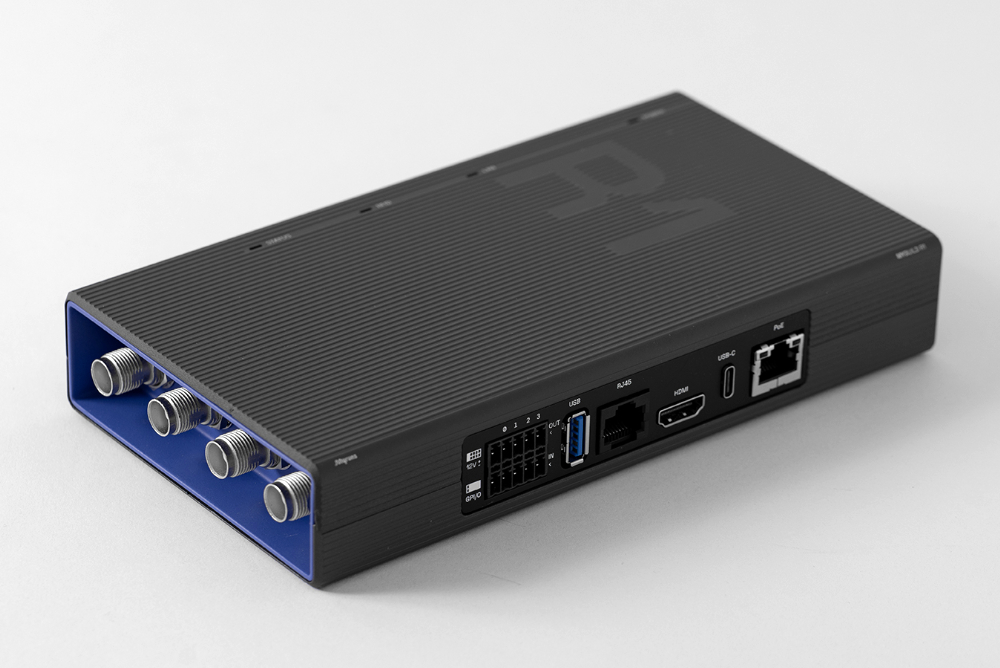
Installation and Commissioning Guide
The MB R1 RFID reader is a highly comprehensive solution for setting up an
RFID data capture environment. It is the most feature-rich reader from the
Myruns brand, designed to support a wide range of functionalities required by the
industrial and retail sectors.
Please make sure the package you receive contains all of the items listed below:
MB R1 Device
USB-C to USB-A Cable
3.1. Power
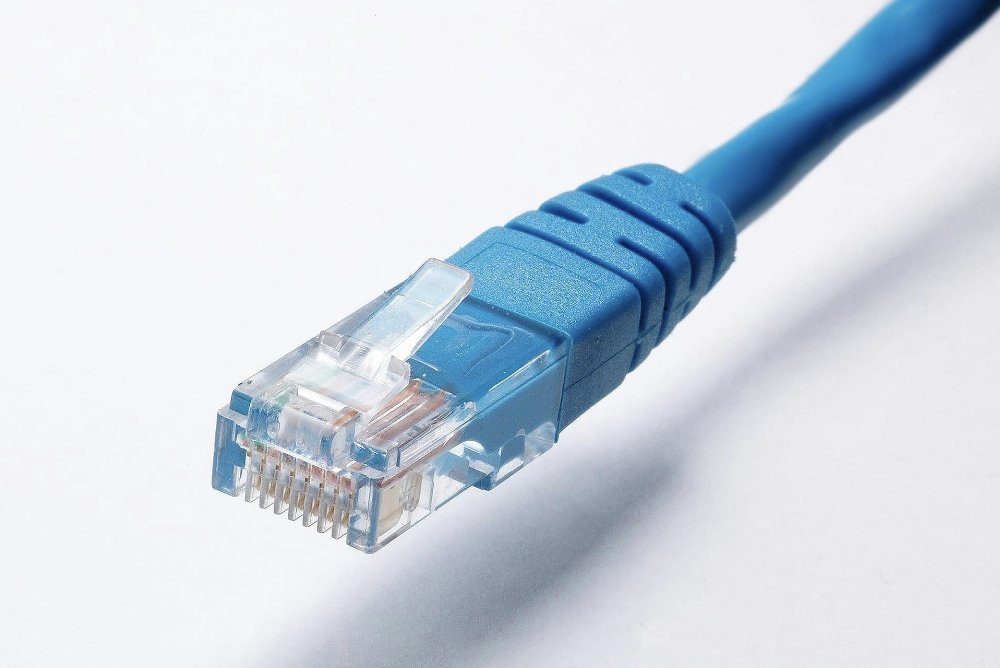
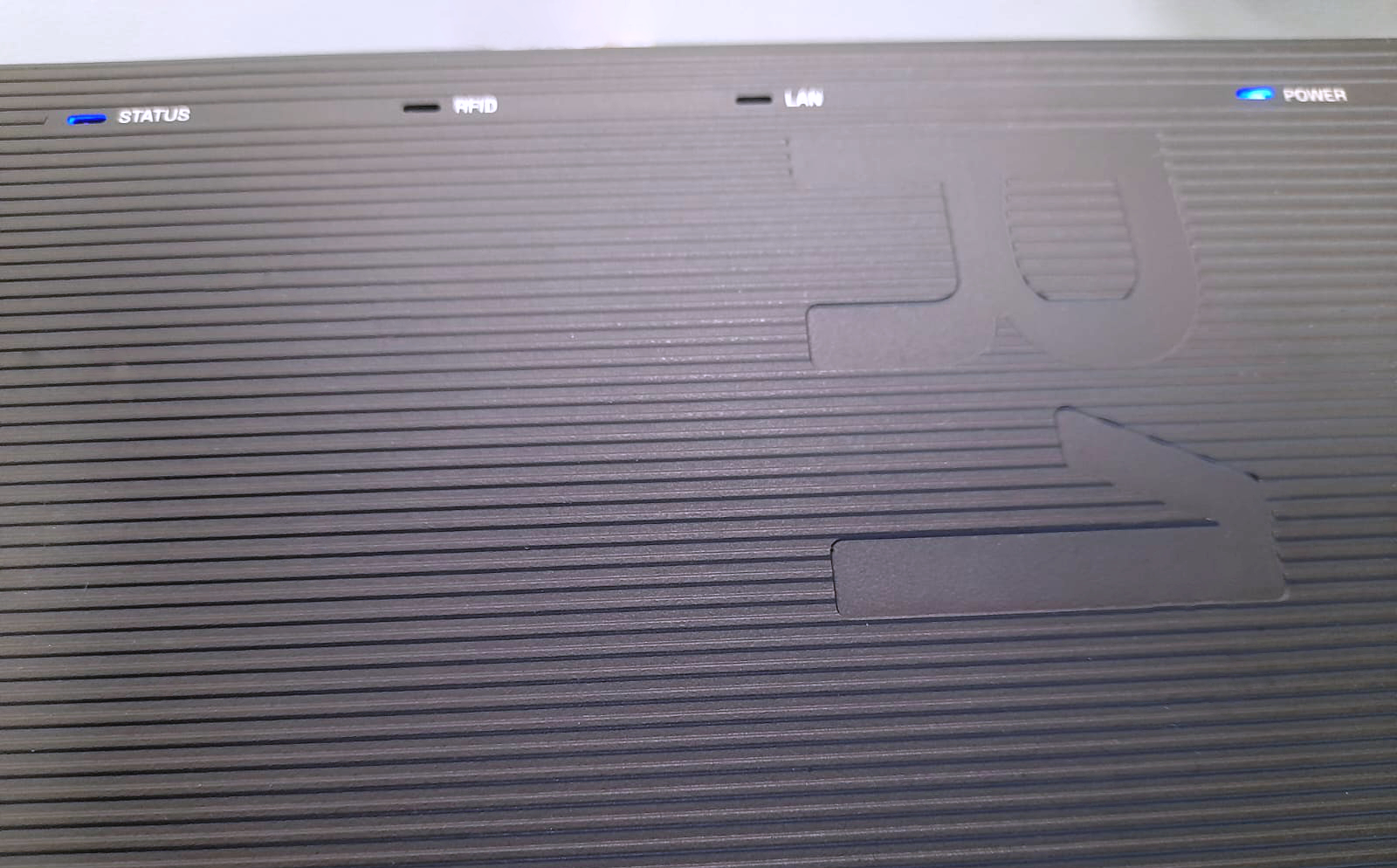
Connect the reader to the PoE port using the provided Ethernet cable. You will notice that the blue power LED turns on, and that the status LED continues to flash. Before proceeding, wait until the status LED remains steady, as this indicates that the reader is operational.
STEADY LEDs. READER INITIALIZED
From here on, we will use the configuration app that comes with the MB R1 device. This app can be used for two purposes, both related to the installation and commissioning of the product:
3.2. MC MANAGER: Reading Test
The MB R1 works with the Myruns MC Manager app for configuring . This app is embedded in the reader and can be accessed via the URL listed on the reader’s label and also on the product box. After connecting the reader to a power source, open a web browser on a computer connected to the same network, and enter the web address listed on the labels. You will see this screen:
ACCESS TO THE MC MANAGER APP
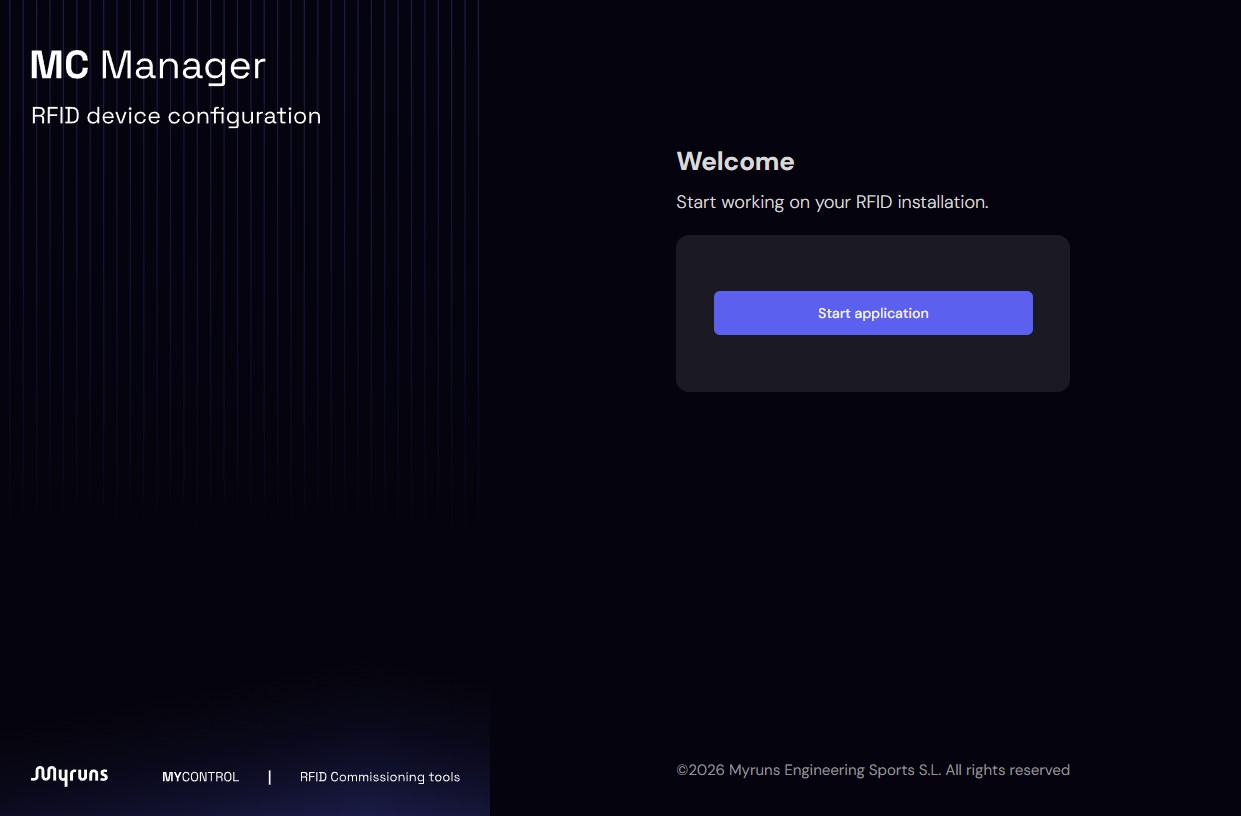
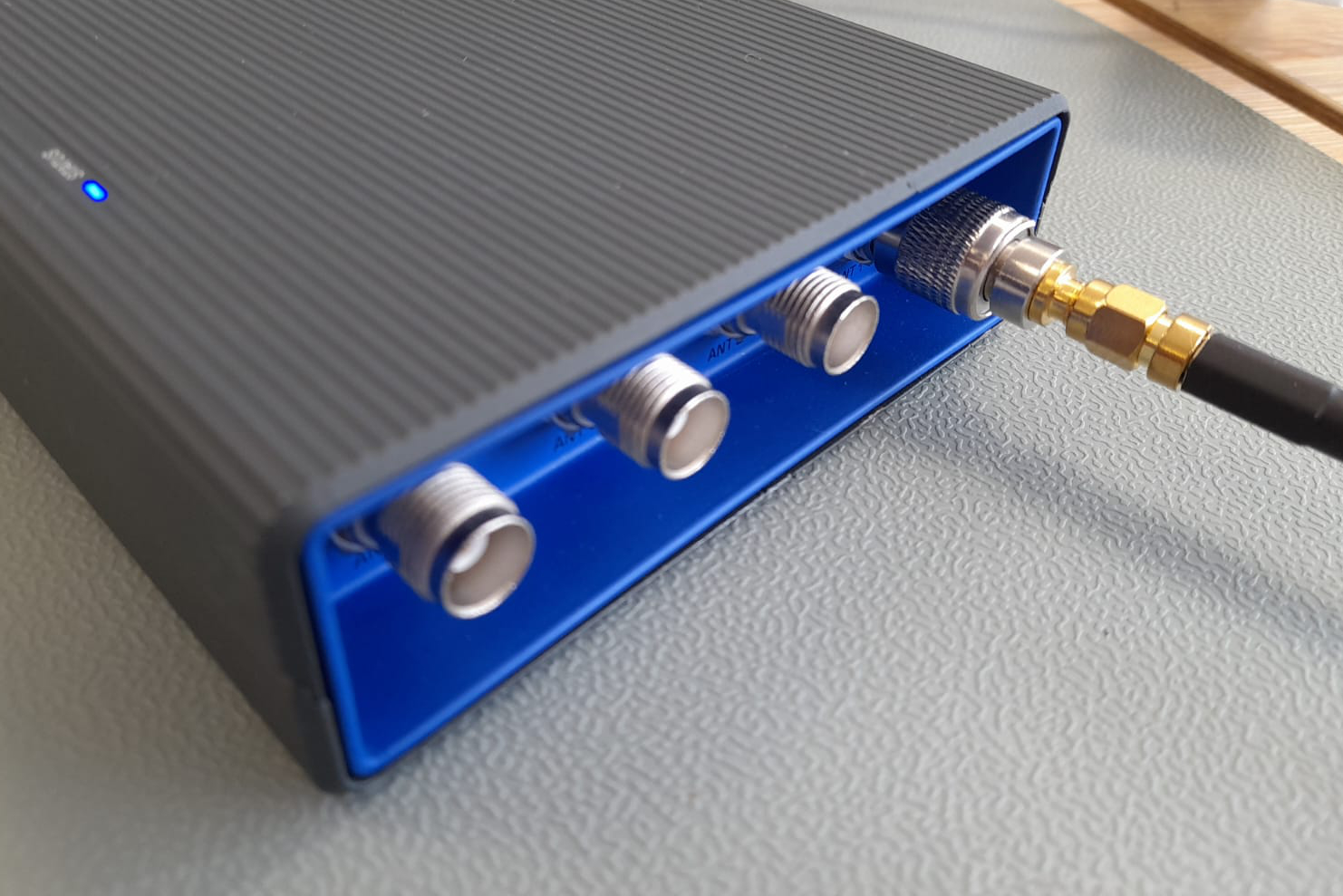
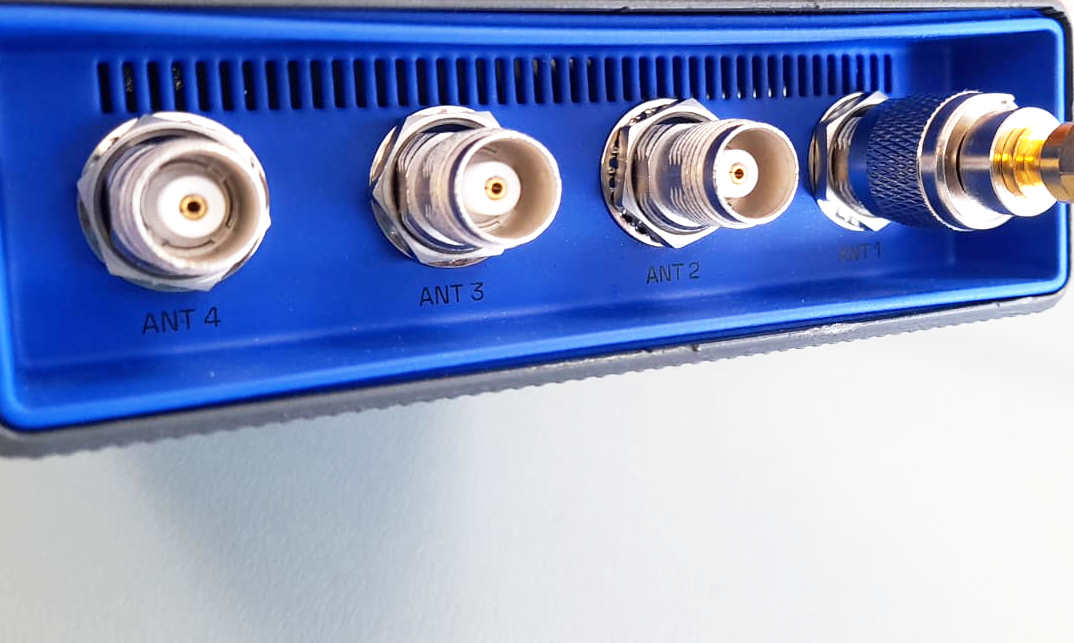
From this screen, click the Start application button and connect one or more antennas to any of the ports, as shown in the image:
Antenna connection
From left to right: 4 / 3 / 2 / 1
Have RFID tags on hand and place them over the connected antennas. In the app, click Start reading. The screen will begin to display the readings as follows:
With this tool, installation personnel can determine the best reading strategy by assessing the distance between the antennas and the tags and monitoring power levels and the activated antennas, as shown in this video:
3.3. MC MANAGER: Submitting readings
From the MC Manager app, you can send tag reading data captured by the reader. To send the readings, the MB R1 system uses two standard protocols: HTTP POST and MQTT. From this screen, you can easily configure reading transmissions, as shown in the video.
REMEMBER:
If you are part of the installation team and have been tasked with configuring these sending parameters, you must ensure that you have been provided with the . Either the IT department of the company where you are performing the installation, or the company that has commissioned the installation, must ensure that you have this information in case you are asked to start sending meter readings.
At this point, the reader should already be up and running. However, MC Manager allows you to
make more advanced configurations for the MB R1:
If the MB R1 device does not function properly during the testing phase, follow the steps below to identify and resolve any issues:
1. Checking the LED indicators
Make sure the POWER and STATUS LED indicators are on and steady, without
flashing.
2. Check the wiring
Try disconnecting the PoE power supply and connecting a second Ethernet cable.
3. Test another MB R1 device
Repeat the setup process with a second MB R1 device to rule out
internal hardware failures.
4. The application does not start correctly
If you see a screen like this...
THE READER HAS NOT STARTED YET
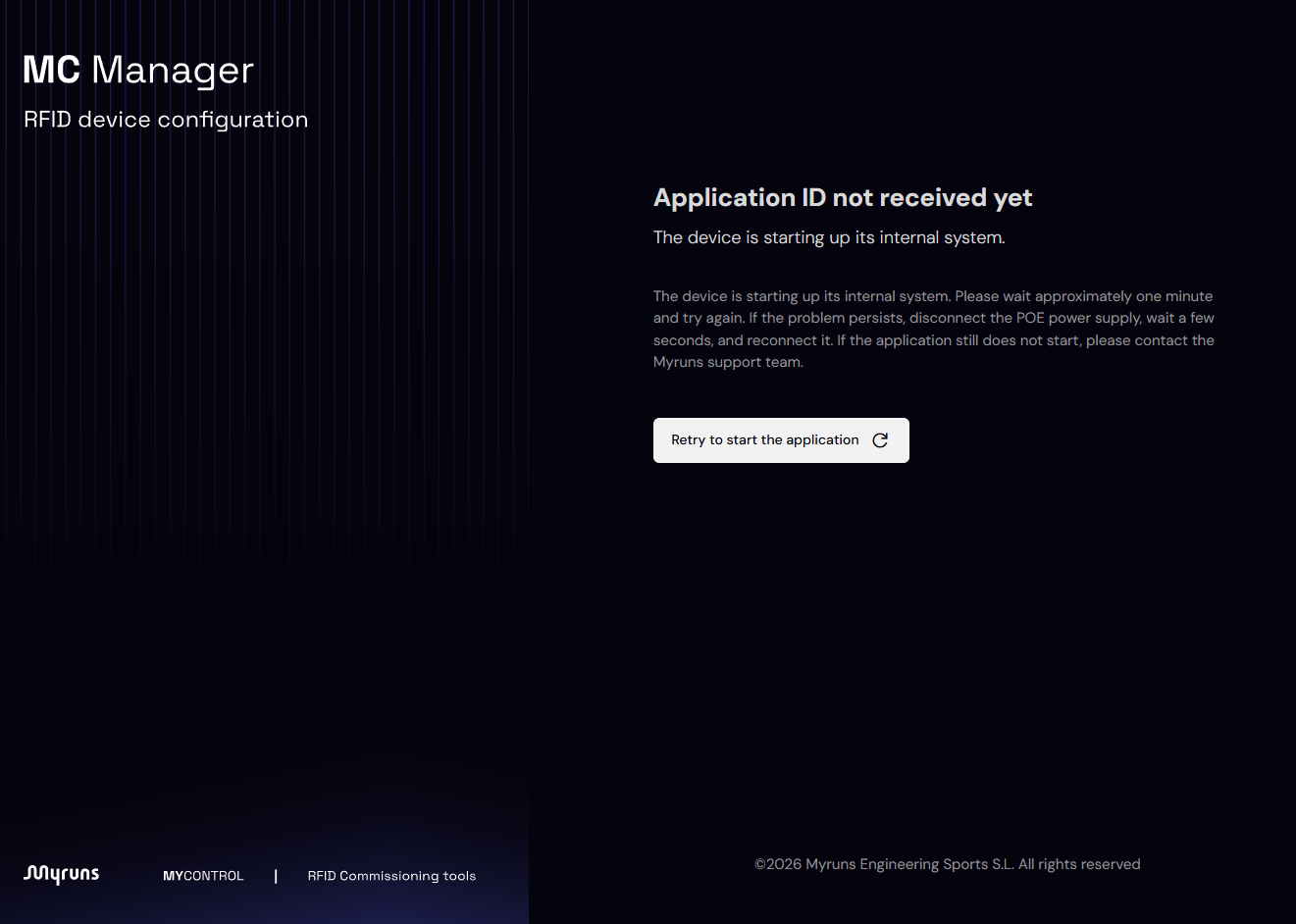
...you may have entered the MC Manager URL in your browser too quickly, and the reader may not have started up yet. Remember, the MC Manager will be accessible as soon as the POWER and STATUS LEDs remain steady. If this screen appears even when the LEDs are steady, try refreshing your browser and clearing the cache. If the problem persists, contact technical support.
RECOMMENDATIONS: