
1. Package contents
Device
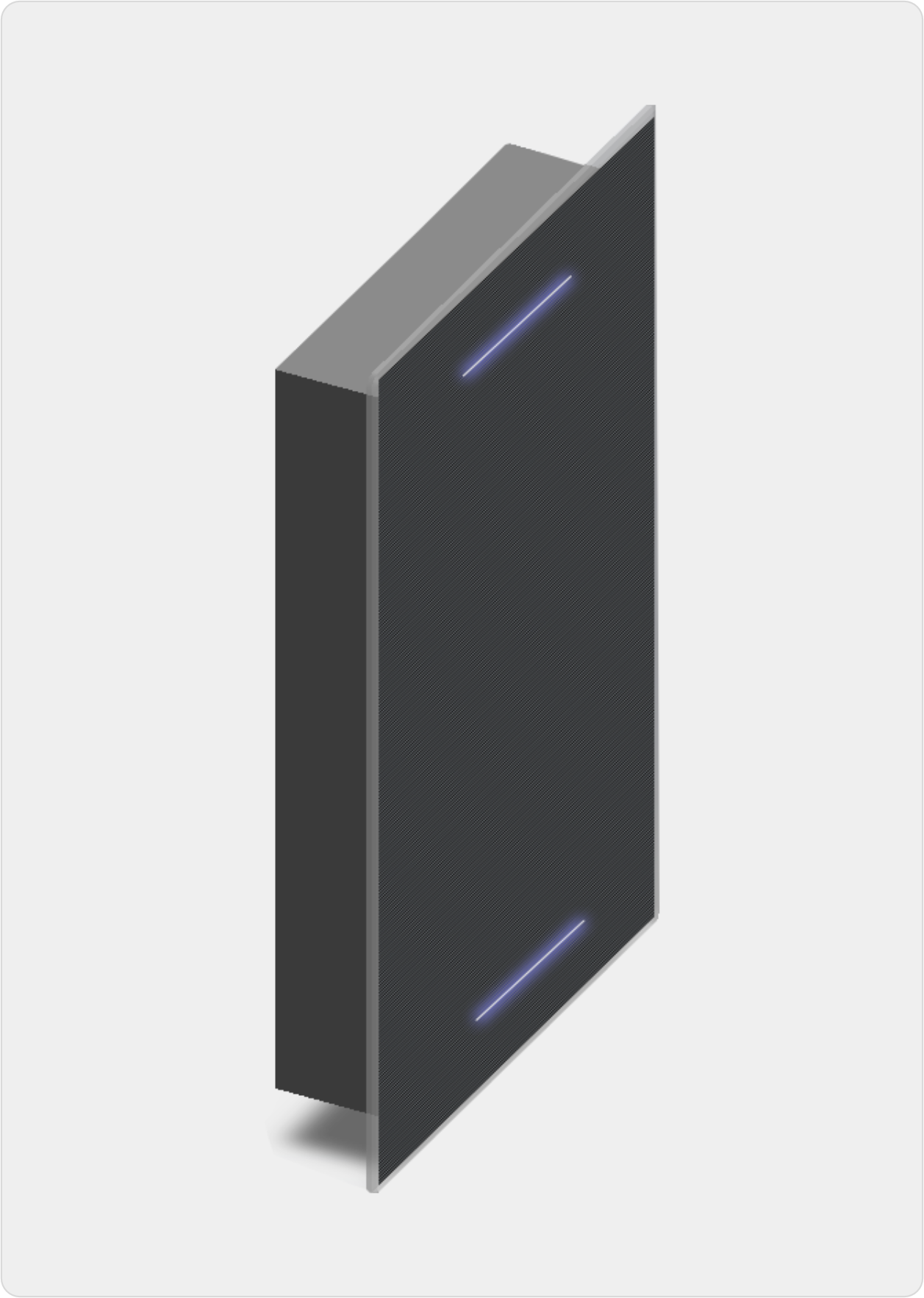
MP CELL 1-Top Master or MP CELL 1-Top Slave
Connections
- USB C - USB A
- 24 V Power supply
Product mechanics
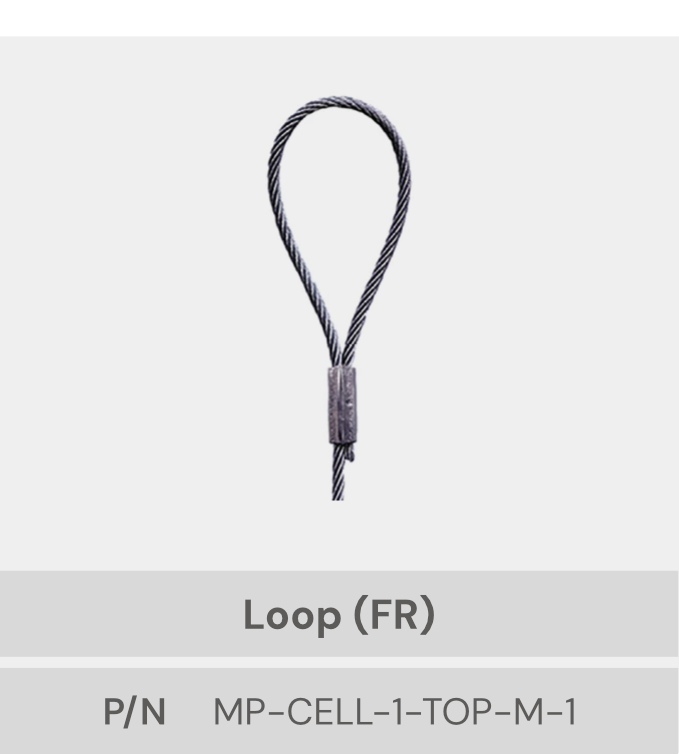
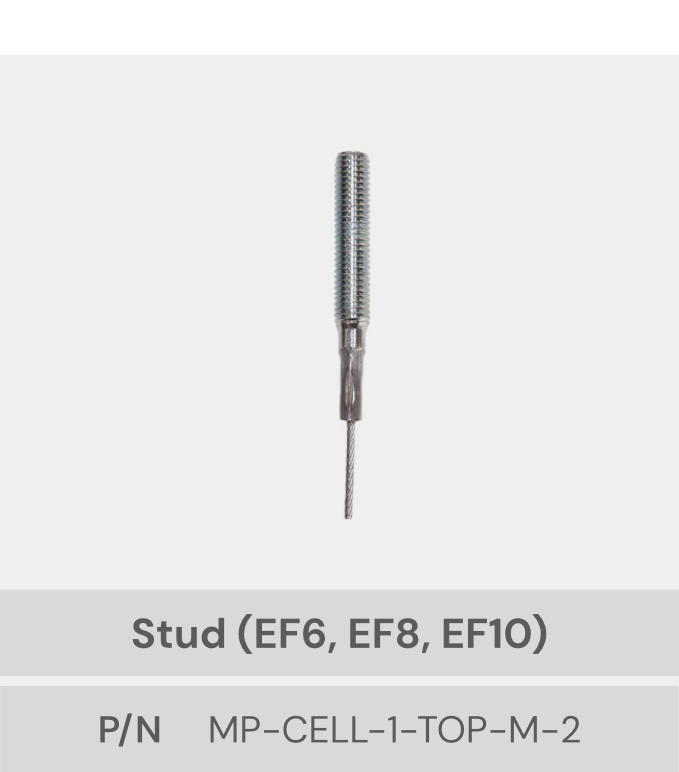
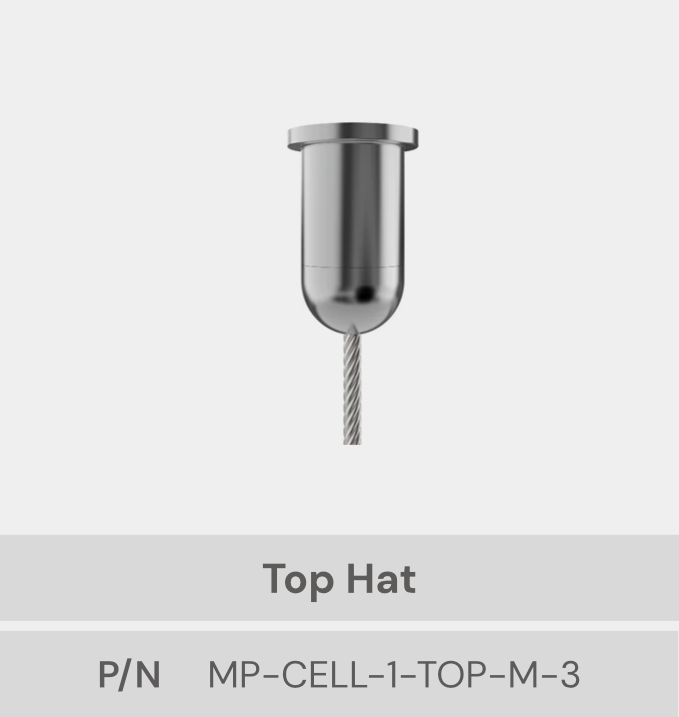
-
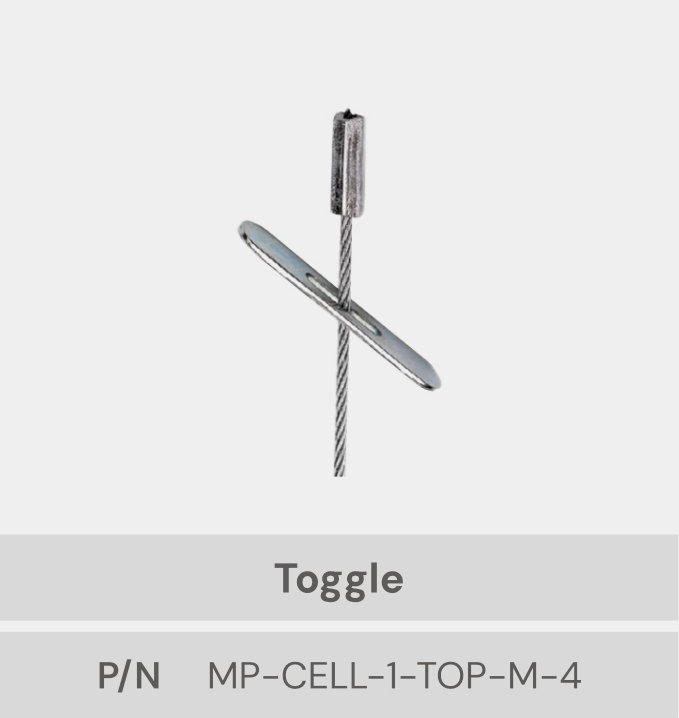
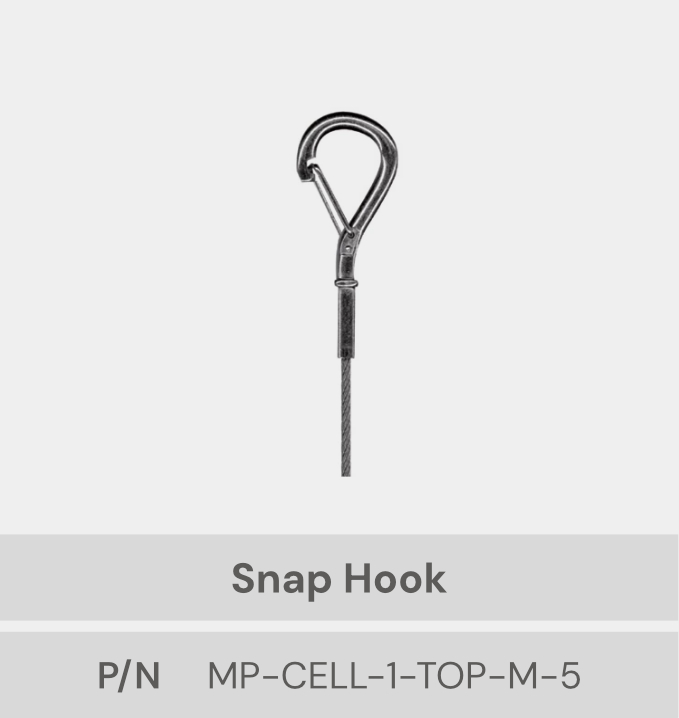
Four mounting brackets for installing the product suspended from the ceiling. The models
distributed are shown below. The model contained in the package will correspond to the one
selected by the customer.
2. Product overview
MP CELL 1-Top devices are designed to control access to a specific space. Each MP CELL 1-Top device can be either a “Master” or a “Slave” type. Master devices include an RDM4 reader and an ANC or A1 antenna. Slave devices, on the other hand, only include the antenna. With this in mind, the customer's installation staff can set up an RFID environment based on a master device to which multiple slaves are connected, as many as the customer's solution requires.
3. Reading test
Follow these steps to verify that the MP CELL 1 - Top Master device is successfully reading RFID tags:
STEP 1: Connecting the devicee
- Connect the device to a power source using the 24 V cable included in the package.
- Connect the device to a PC using the USB C to USB A cable included in the package.
- Connect to a network outlet from the reader's Ethernet port using an RJ45 cable (this cable is not included in the package).
STEP 2: Connect device to your local network
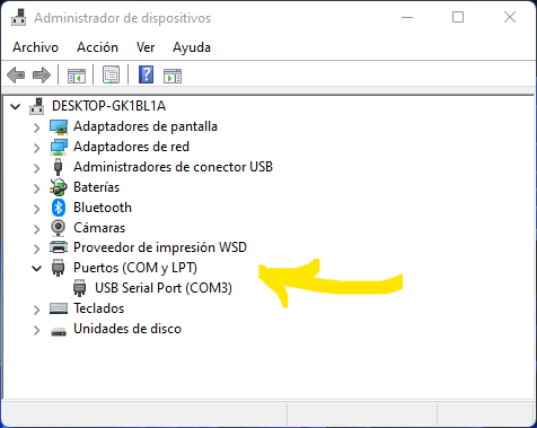
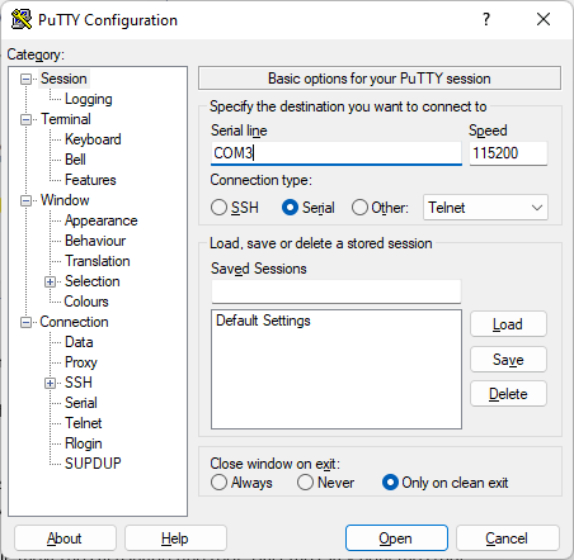
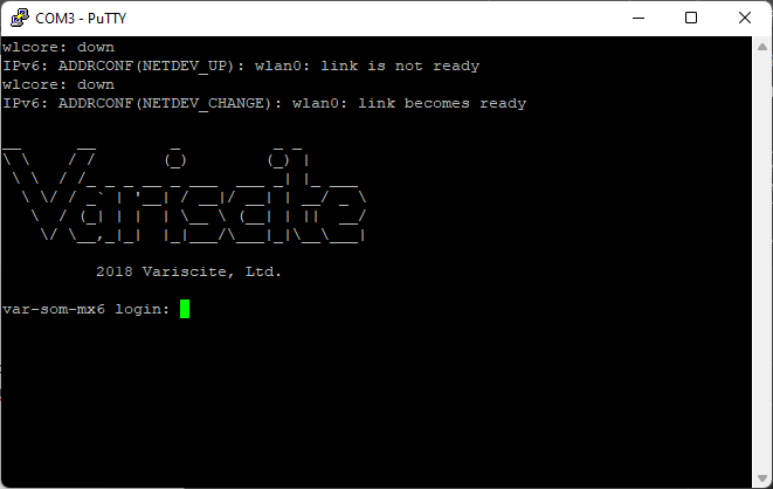
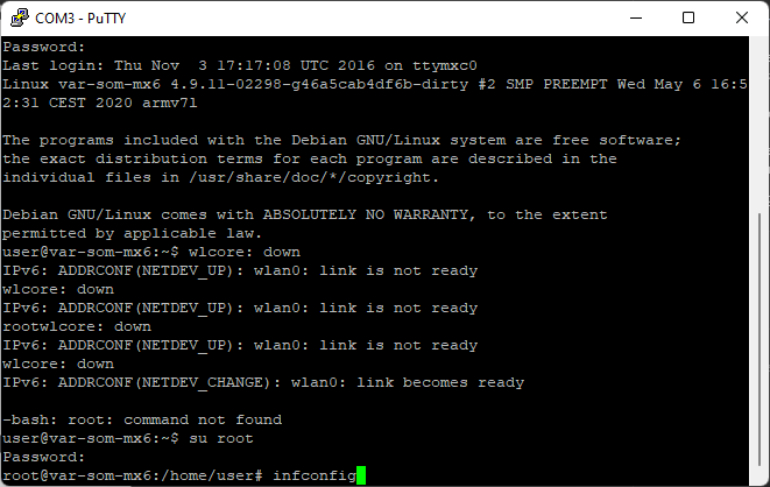
Use a software tool to emulate a terminal (Putty, MobaXterm, or similar). In this example, the
software putty is used. Follow these steps to connect the reader to the local network from the terminal.
su
we type the username:
root
and finally, the password:
root
STEP 3: Open Myruns software
At this point, we will have accessed the reader with root permissions through the terminal.
All that remains is to find out the assigned IP address so that we can access it from a web browser.
To do this, we type the following into the terminal:
ipconfig
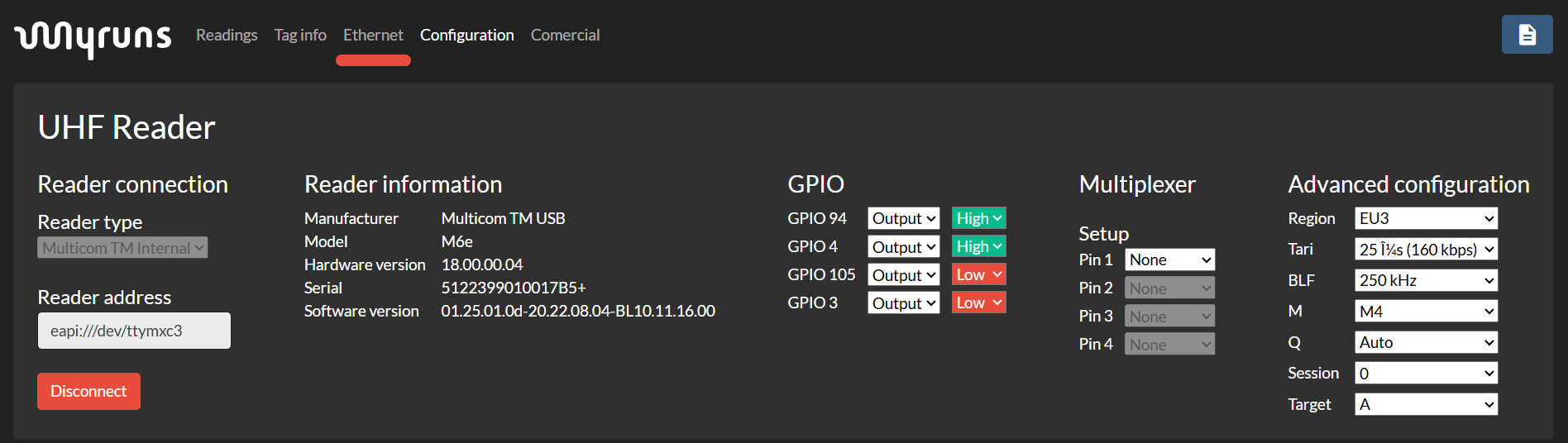
Locate the dynamic IP (192.168.1.X), copy and paste it into the browser, and press "enter".
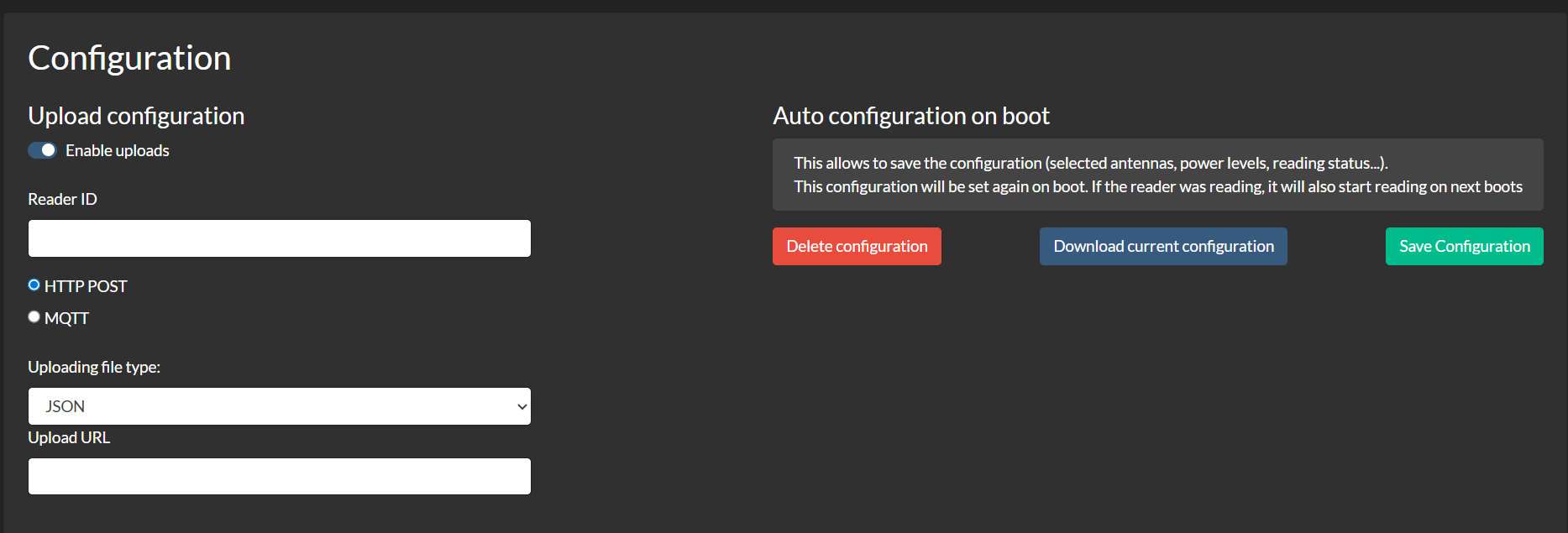
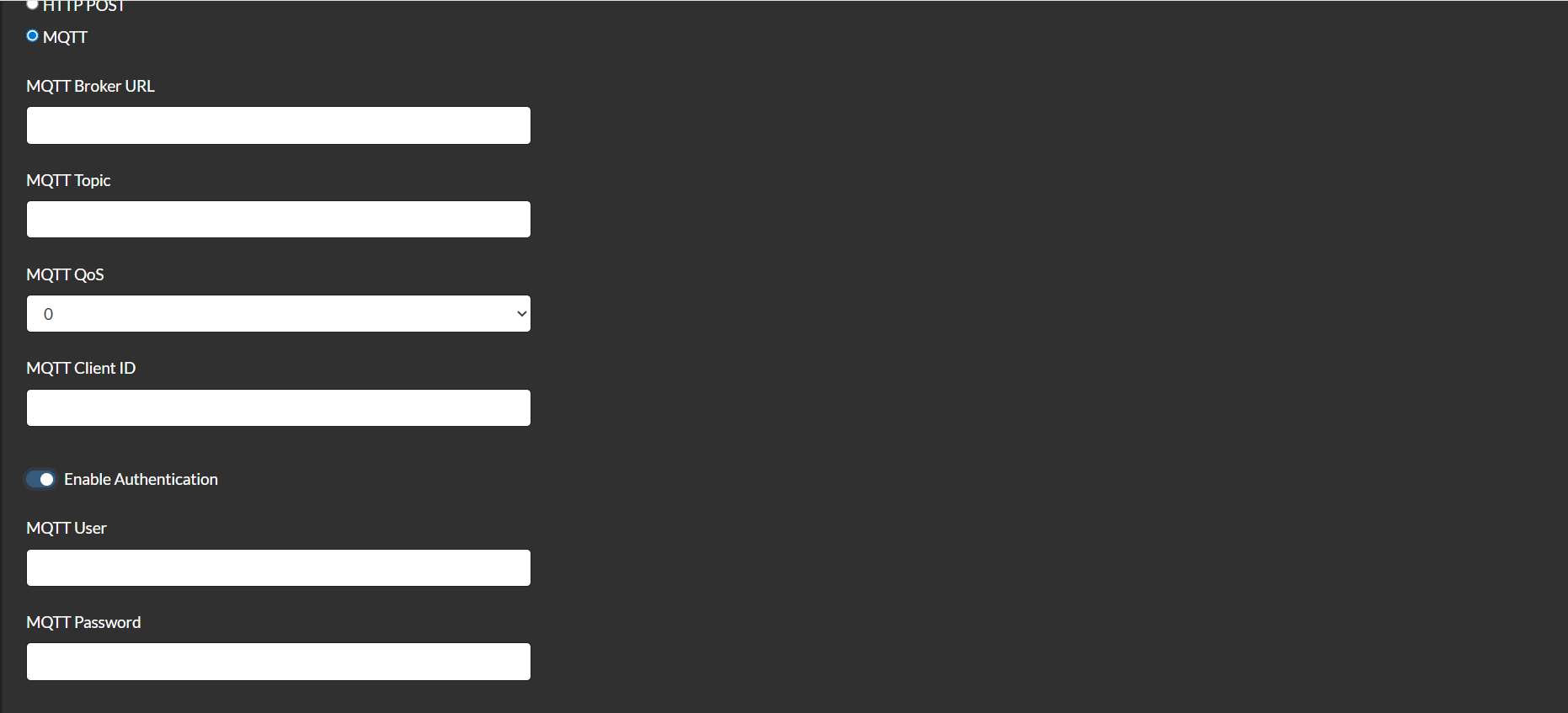
This will take you to the reader software console.
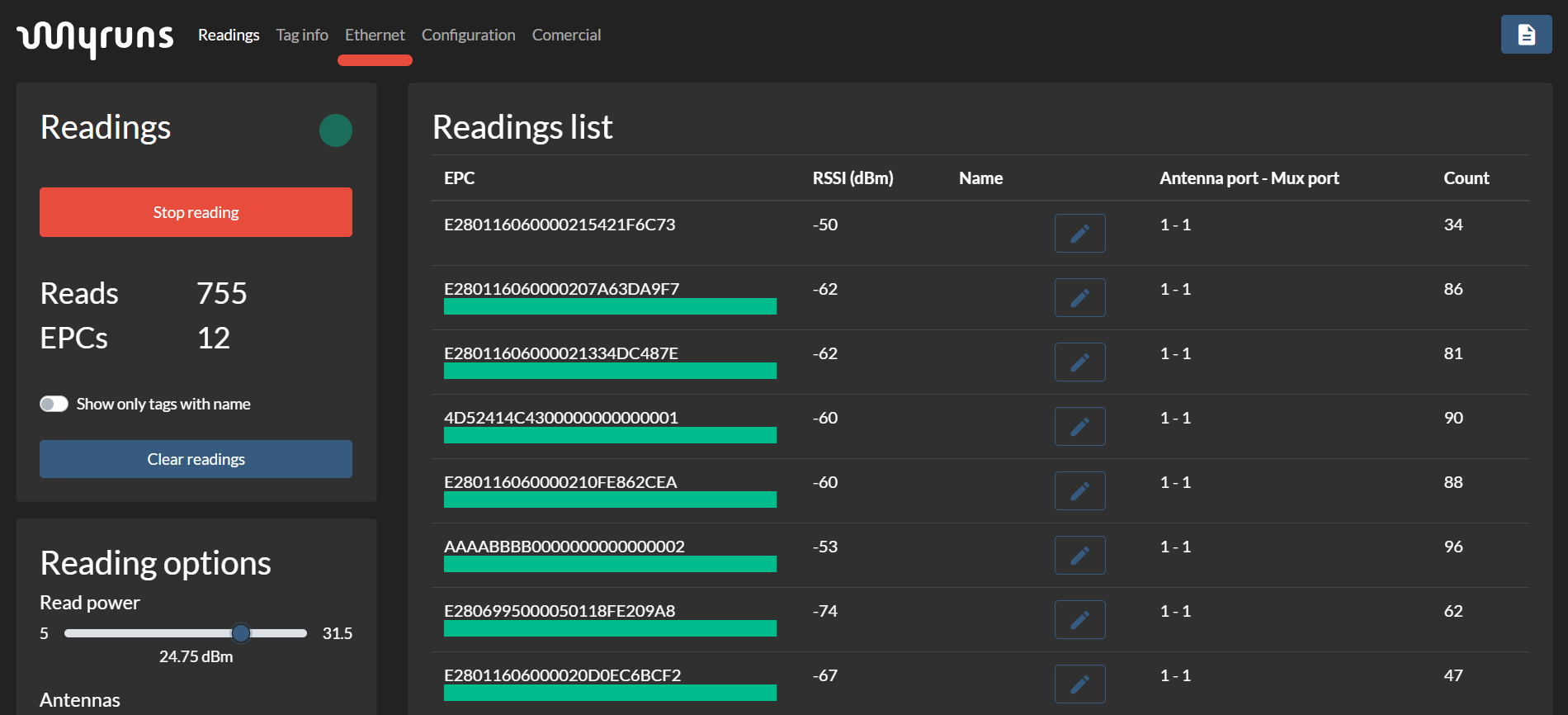
STEP 4: Read Test

4. Troubleshooting during testing
If the MP CELL 1 - Top Master device does not function properly during the testing phase, follow the steps below to identify and resolve any issues:
1. Check device power
Make sure that the device's power supply is properly connected.
2. Check USB connection
Try connecting the device to a different USB port on your PC. If no
ports are available, try the test on another computer to rule out host system issues.
3. Replace USB cable
Swap the supplied cable for one with the same specifications (USB Type
A to Type C) to rule out cable faults.
4. Test another MP CELL 1 - Top Master device
If you have another device, repeat the test
using the
same original port and cable to check if the issue is due to the device hardware.
5. Contact technical support
If the problem persists after performing all the above tests,
please contact Myruns technical support for assistance.