
MYPLAY POS 2
Installation and Start-up Guide
1. Product Description
The Myruns MP POS 2 is a Point of Sale system for assisted checkout areas in stores. This
product connects to a PC and operates via keyboard emulation, allowing you to enter the tag code
into any application installed on a PC. If you have a software application to assist customers
at checkout, this POS is the perfect peripheral to provide RFID reading coverage during the
sales process. This system integrates two essential RFID components from Myruns: the MB M1-USB,
a USB-connected reading module, and the ANC antenna, designed for short-range reading.
2. Package contents
Please ensure that the package you receive contains all the items listed below.
MP POS 2 Device

USB-C / USB-A cable

3. Commissioning
3.1. Connect USB device
As mentioned in the product description, the POS device requires a USB power connection. Ideally, it should be connected to a Windows PC to take full advantage of the product's features.
3.2. Test reading
To test the reading, open Notepad or any simple text editing application included on the PC
to which you have connected the device. Pass two or three labels over the reader to verify
that the behavior is as follows:
- The EPC (label code) is written in the text editor, and a paragraph break occurs in the text editor.
- If a different label is passed than the previous one, the behavior is repeated (code is written and a paragraph break occurs).
- If the same label is scanned again, its EPC (Electronic Product Code) is not written again for 10 seconds. This is to prevent sending the same product label twice. This time, as we will see below, is configurable through the Retail Tool control software.
3.3. How to use Retail Tool
Retail tool
It is recommended to open this manual from a PC to proceed with the application installation. Access the URL: https://docs.myruns.com/manuales/pos_2/en
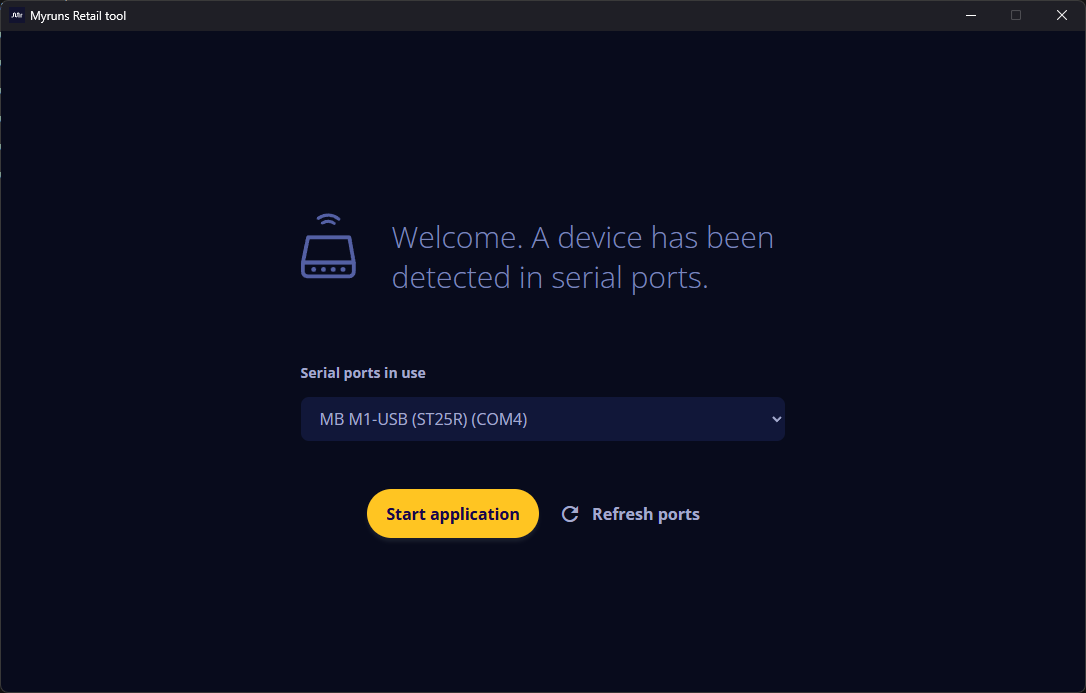
AWhen you open the application, select the connected module.
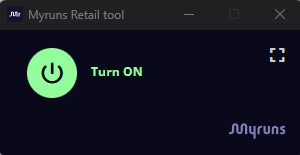
The retail tool software is a tool that allows the reader to be turned on and off on demand from a simple floating window on the user's PC.
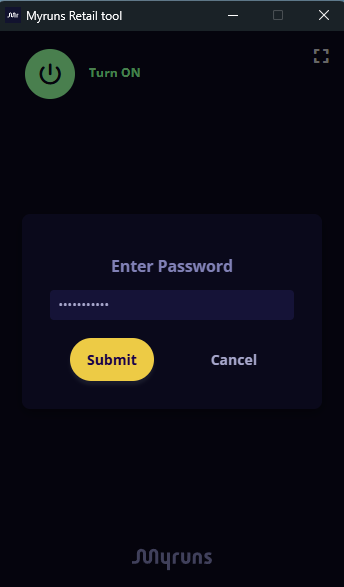
This program also allows for a series of advanced actions by entering the following
password:
Myruns_2025
This password serves as a small barrier to separate the workflow of the cashier from that of
the store manager. The software can be downloaded from the link below.
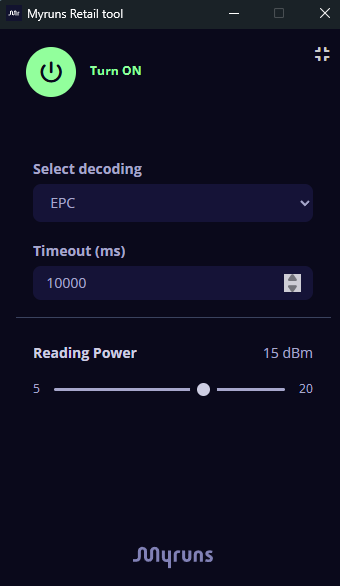
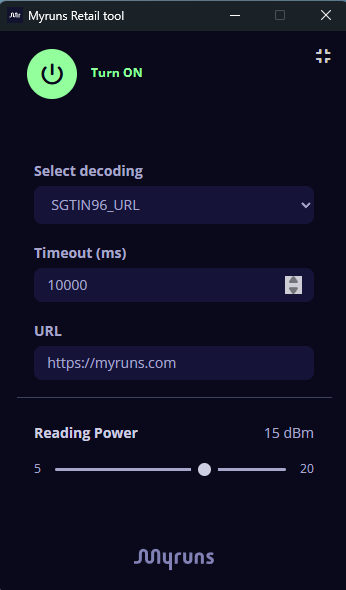
When expanding the advanced options, the parameters we can configure are the following:
- Choose the type of decoding (EPC, SGTIN, EAN 13...).
- If we choose SGTIN decoding, we can select the URL we want to link to the readings. This is useful if our articles tagged with an SGTIN code, when combined with a URL, trigger some kind of action on our servers. These actions can be as simple as displaying an image in the payment application, but they can also be used to trigger more complex server operations, insert information into the database, or any other task related to the use case.
- We can modify the refresh time (in milliseconds) to reread an EPC, as we mentioned previously.
- The reading power can be modified from 5 dBm's to 20 dBm's.
4. Problem solving
If the POS device does not function correctly during commissioning, follow the steps below
to try to identify and resolve the problem:
-
Check the device switch
Make sure the switch is in the ON position and the blue LED is lit. -
Check the device's USB power
Try connecting the device to a different USB port on your PC. If no ports are available, test it on another computer to rule out problems with the PC you are using. -
Replace the USB cable
Change the supplied cable for one with the same specifications (USB Type A to Type C) to rule out cable failures. -
Try another POS device
SIf you have another Myruns POS reader, repeat the test using the same original port and cable to check if the problem is due to the device hardware. -
Contact technical support
If the problem persists after performing all the above tests, contact Myruns technical support for assistance.